
در این صفحه الگوهای (Templates) فارسی لیبرهآفیس قرار خواهد گرفت.
الگوهای فارسی لیبرهآفیس از تغییر الگوهای پیشفرض این نرمافزار (که برای نوشتههای لاتین بهینه هستند) ساخته شدهاند. بزرگترین بخش این کار، انجام تغییرات روی سبکهای پیشفرض بوده است. این کار در محیط نرمافزار لیبرهآفیس و از راه منوها و سایر تنظیمات و گزینههای پیشرفتهٔ آن انجام شده است.
مقاله در اندازهٔ A4
کتاب الکترونیکی
مقاله در اندازهٔ US Letter
الگوهای دیگر
بنیانگذار این پروژه و نگهدارندهٔ فعلی آن مسعود آبکنار است. او از سال ۱۳۸۵ کاربر لیبرهآفیس و اُپنآفیس بوده است و از مدتها پیش دربارهٔ این مجموعهٔ اداری آزاد و کاربردش برای فارسیزبانان مینویسد. او همچنین در گروه پارسیلاتک برای بهبود و ترویج فارسینویسی با نرمافزار حروفچینی لاتک و بستهٔ زیپرشین نیز همکاری داشته است.
راهنمای کاربری
ویژگیهای اصلی الگوهای فارسی
- قلمهای فارسی درون این الگوها گنجانده شده اند، بنابراین نیازی به نصب جداگانهٔ قلمها نخواهید داشت.
- قلم پیشفرض فارسی: Vazir (عنوانها) و Sahel (متن)
- قلم فارسی برای نمایش خودکار اعداد: Sahel FD-WOL (برای نمایش شمارهٔ صفحهها و… با رقمهای فارسی)
- قلم پیشفرض لاتین: Liberation Sans (عنوانها) و Liberation Serif (متن)
- قلم پیشفرض با عرض ثابت (فارسی و لاتین): Vazir Code
- اندازهٔ قلم متن: ۱۲
- اندازهٔ صفحه برای الگوی کتاب الکترونیکی: ۹×۱۶ سانتیمتر
تنظیم الگوها به عنوان الگوی پیشفرض لیبرهآفیس
نیازی به انجام این کار نیست، ولی اگر این الگوها را به عنوان الگوی پیشفرض لیبرهآفیس تنظیم کنید، دیگر نیازی نخواهید داشت تا برای آغاز هر نوشتهٔ تازه، دوباره به این سایت سر بزنید. هر بار که لیبرهآفیس را باز کنید، خودبهخود این الگو باز خواهد شد و نقطهٔ آغازی برای همهٔ نوشتههای آیندهٔ شما خواهد بود.
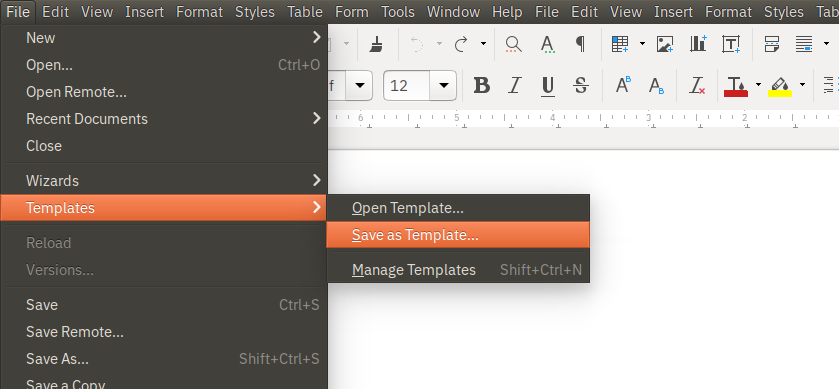
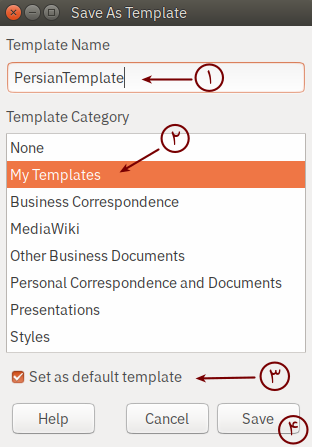
برای تنظیم الگوها به عنوان الگوی پیشفرض، نخست الگوی دلخواه خود را که از اینجا بارگرفتهاید باز کنید. سپس از منوی File و زیرمنوی Templates روی گزینهٔ Save as Template… کلیک کنید. در پنجرهای که باز میشود، نامی برای الگو بنویسید (مثلاً PersianTemplate)، دستهای برای الگوی خود از فهرست دستهها برگزینید (مثلاً My Templates)، روی گزینهٔ Set as default template را تیک بزنید، و در پایان الگو را ذخیره کنید.
روش ساخت الگوها
اگر شما فقط کاربر الگوهای فارسی هستید و قصد تغییر یا بهبود الگوها را ندارید، میتوانید این بخش را نادیده بگیرید!
الگوهای فارسی لیبرهآفیس از تغییر الگوهای پیشفرض این نرمافزار (که برای نوشتههای لاتین بهینه هستند) ساخته شدهاند. بزرگترین بخش این کار، انجام تغییرات روی سبکهای پیشفرض بوده است. این کار در محیط نرمافزار لیبرهآفیس و از راه منوها و سایر تنظیمات و گزینههای پیشرفتهٔ آن انجام شده است. در این بخش همهٔ مراحل تبدیل الگوی پیشفرض لیبرهآفیس (Default.ott) را به الگوهای فارسی توضیح میدهیم. به دلیل ضرورت نامبردن از تنظیمات نرمافزار به زبان انگلیسی، کل مراحل این کار را به انگلیسی نوشتهایم. به کمک این توضیحات، شما هم میتوانید الگوهای فارسی مورد نیازتان را بسازید یا الگوهای فعلی را مطابق نیاز خود تغییر دهید.
== General settings
* Make a local copy from LibreOffice’s default template.
** In Ubuntu GNU/Linux, the default template can be found at:
/usr/lib/libreoffice/share/template/common/styles
** If using the official snap version of LibreOffice (in various GNU/Linux distributions), the default template can be found at:
/snap/libreoffice/current/lib/libreoffice/share/template/common/styles/Default.ott
** In Windows, the default template can be found at: C:\Program Files\LibreOffice\share\template\common\styles\Default.ott
* Open the template via File->Templates->Open Template…
* Tools -> Options -> Languages -> Enable CTL, CTL Language: Persian
* File -> Properties -> Font: only select “Embed fonts in this document” and “Complex fonts” (although currently all fonts are embedded, probably a bug)
* Open style properties by pressing F11, and follow the rest of the instructions.
=== Paragraph styles
* Style -> Paragraph Styles -> Default -> Font
** Western Text Font Family: Liberation Serif
** CTL Font Family: Sahel
** CTL Language: Persian (was there)
* all other paragraph styles: (was there, except styles mentioned below)
* Style: “Text Body” -> “List”
** CTL font: Sahel (it does not inherit from Default)
* Style: Preformatted Text
** Both Latin and CTL font: Vazir Code (changed from Liberation Mono, since Liberation Mono has a different character width that Vazir Code)
* Style: “Heading” (and all sub-styles automatically)
** CTL font: Vazir
* Style: “Caption” (and all sub-styles automatically) (it does not inherit from Default)
** CTL font: Sahel FD-WOL (for caption numbers of images, tables, etc.)
* Style -> Paragraph Styles -> Default -> Alignment (enough to do it only for Default style, since all other style inherit from it)
** Options: Right
** Text direction: Right-to-left (RTL)
=== Page Styles
* For all page styles
** In the Footnote tab, change the position of Separator Line to “Right”
** In the Page tab, change Text direction to “Right-to-left (horizontal)”
* Only for HTML Page Style, in the Page tab, replace left and right margin values (0.39in <-> 0.79in | 1cm <-> 2cm). (All other page styles have equal margins.)
=== Character Styles
* Changed CTL font of the following character styles to Sahel FD-WOL
** Caption Characters
** Numbering Symbols
** Page Number
** Line Numbering
** Footnote Characters (it only affects footnote numbers, not the content of footnotes)
** Footnote Anchor (it affects footnote numbers in the text itself)
** Endnote Anchors
** Endnote Characters
** Vertical Numbering Symbol
* Changed Latin and CTL fonts to Vazir Code for the following styles
** Example
** Source Text
** Teletype
** User Entry
* Changed CTL font of ALL OTHER character styles to Sahel (there were several)
=== List Styles
** set Numbering Alignment for all “List X” styles to “right” (use the 1-10 option to automatically assign it to all list levels)
** Do not change it for “Numbering XXX” styles. Let them remain at “left”
** set numbering style (in the tab “Customize”) for all “Numbering XXX” list styles (again, use the 1-10 option)
*** Numbering 123: ۱, ۲, ۳, ۴, … (Farsi) (This option only exists in LibreOffice 6.3 or later)
*** Numbering abc: آ ب پ
*** Numbering ABC: یک دو سه
*** style “List 4”: change the arrow character for the first 2 levels from “>” symbols to “<” symbols
=== Numbering types
In the menu Tools -> Footnotes and Endnotes… in the tab for Endnotes, change the Numbering to آ ب پ
The main PersianTemplateA4 is now ready. We’ll base other Persian templates on it, as described below.
== USLetter
* for all page styles (except page style Envelope)
** change paper size to “Letter”
== E-book
* for all page styles
** change paper size to width 9cm, height 16cm (only for page style Landscape to width 16cm and height 9cm)
** margins: all set to 0.2cm (accept the warning that appears after you apply your changes)
* for paragraph style “Heading 1”
** change Alignment->Options to “Center”
** change Indent and Spacing->Spacing->Above Paragraph 4cm
** change Indent and Spacing->Spacing->Below Paragraph 2cm
** change Text Flow->Breaks->Insert Page Before